Top 25 Git Commands Every Developer Should Know
Learn the most important Git commands with simple explanations and examples — perfect for daily use

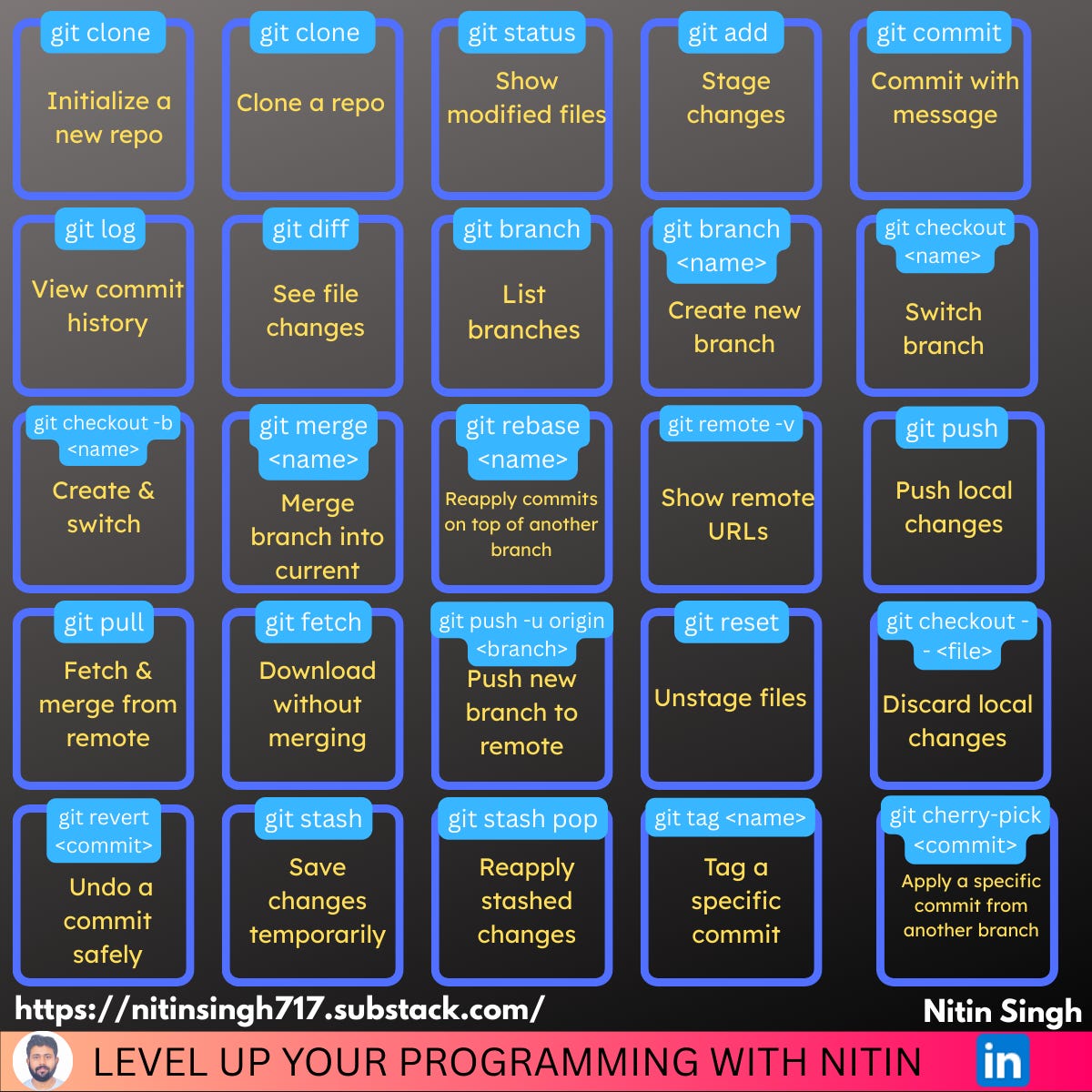
Basics
1. git init – Initialize a new repo
Creates a .git folder to start tracking versions.
Use it when starting a brand-new project.
Doesn’t connect to any remote by default.
Example:
mkdir my-app && cd my-app
git init
2. git clone <repo-url> – Clone a repo
Copies a remote Git repo to your local system.
You get all files, branches, and history.
Add a folder name to change the destination.
Example:
git clone https://github.com/user/repo.git
git clone <url> my-folder
3. git status – Show modified files
Tells you what’s changed, what’s staged, and what’s untracked.
Helps you review before committing.
Example:
git status
4. git add <file> – Stage changes
Prepares files for the next commit.
You can add specific files or everything.
Example:
git add index.html
git add .    # add all changes
5. git commit -m "msg" – Commit with message
Takes a snapshot of staged changes.
Always write a meaningful message.
Example:
git commit -m "Add login functionality"
6. git log – View commit history
Shows a detailed list of past commits.
Use --oneline for a simpler view.
Example:
git log
git log --oneline
7. git diff – See file changes
Shows what’s changed before staging or committing.
Useful to double-check your edits.
Variants:
git diff– working dir vs staginggit diff --staged– staged vs last commit
Example:
git diff
git diff app.js
git diff --staged
Branching & Merging
8. git branch – List branches
Shows all local branches in your repo.
Current branch is marked with an asterisk (*).
Example:
git branch
9. git branch <name> – Create new branch
Creates a new branch off the current one.
Useful for adding features without affecting main.
Example:
git branch feature-login
10. git checkout <name> – Switch branch
Switches to an existing branch.
Always commit or stash changes before switching.
Example:
git checkout feature-login
11. git checkout -b <name> – Create & switch
Shortcut to create a new branch and switch to it immediately.
Saves a step when starting new work.
Example:
git checkout -b bugfix-header
12. git merge <name> – Merge branch into current
Combines changes from the given branch into the one you're on.
Usually used to merge feature branches into main.
Example:
git checkout main
git merge feature-login
13. git rebase <name> – Reapply commits on top of another branch
Moves your branch to the tip of another branch (cleaner history).
Useful for syncing feature branches before merging.
Example:
git checkout feature-login
git rebase main
Remote Repos
14. git remote -v – Show remote URLs
Displays the remote repositories connected to your project.
Usually shows origin for GitHub or other remotes.
Example:
git remote -v
15. git push – Push local changes
Sends committed changes to the remote branch.
Default: pushes to the tracked branch on origin.
Example:
git push
git push origin main
16. git pull – Fetch & merge from remote
Combines git fetch and git merge in one step.
Updates your local branch with the latest remote changes.
Example:
git pull
git pull origin main
17. git fetch – Download without merging
Downloads changes from the remote but doesn’t merge them.
Useful to review changes before merging.
Example:
git fetch
git fetch origin
18. git push -u origin <branch> – Push new branch to remote
Pushes a new branch and sets upstream tracking.
After this, future pushes can use just git push.
Example:
git push -u origin feature-auth
Undo & Reset
19. git reset – Unstage files
Removes files from the staging area (doesn’t delete changes).
Use --hard to reset both stage and working directory.
Example:
git reset HEAD file.js
git reset --hard
20. git checkout -- <file> – Discard local changes
Restores a file to the last committed version.
Caution: this will discard unsaved work.
Example:
git checkout -- index.html
21. git revert <commit> – Undo a commit safely
Creates a new commit that reverses the changes.
Used when you’ve already pushed and want a safe undo.
Example:
git revert abc1234
22. git stash – Save changes temporarily
Stores your local changes in a stack for later use.
Helpful when switching branches without committing.
Example:
git stash
23. git stash pop – Reapply stashed changes
Restores the most recently stashed changes and removes them from stash.
Use git stash list to view all stashes.
Example:
git stash pop
Bonus
24. git tag <tagname> – Tag a specific commit
Marks a commit (like a release) with a human-readable label.
Example:
git tag v1.0.0
25. git cherry-pick <commit> – Apply a specific commit from another branch
Copies a specific commit into your current branch.
Useful for pulling in isolated fixes or changes.
Example:
git cherry-pick abc1234
🙏 Thanks for Reading!
Whether you're just getting started with Git or looking to sharpen your workflow, I hope this guide helped you understand the most essential commands every developer should know.
If you found this useful, feel free to bookmark it or share it with a fellow developer.
Got a favorite Git trick or command I missed? Drop it in the comments — I’d love to hear it!
Happy coding! 🚀
Nitin
Hashnode | Substack | LinkedIn | GIT